# [切换到中文版](./README_zh_cn.md)
# EBB36 & 42 CAN V1.0
## Hardware
* MCU: ARM Cortex-M0 STM32F072C8T6 48MHz with CAN bus
* Stepper Dirver: Onboard TMC2209 in UART mode, UART address: 00, Rsense: 0.11R
* Onboard Accelerometer Sensor: ADXL345
* Onboard Temperature IC: Max31865 Select 2 / 4 lines PT100 / PT1000 by DIP switch (no Max31865 verson have not this feature)
* Input Voltage: DC12V-DC24V 6A
* Logic Voltage: DC 3.3V
* Heating Interface: Hotend (E0), maximum output current: 5A
* Fan Interfaces: two CNC fans (FAN0, FAN1)
* Maximum Output Current of Fan Interface: 1A, Peak Value 1.5A
* Expansion Interfaces: EndStop, I2C, Probe, RGB, PT100/PT1000, USB interface, CAN Interface
* Temperature Sensor Interface Optional: 1 Channel 100K NTC or PT1000(TH0), 1 Channel PT100/PT1000
* USB Communication Interface: USB-Type-C
* DC 5V Maximum Output Current: 1A
## Firmware
* Only supports Klipper at the present.
## Pinout
* EBB36 CAN V1.0
/EBB36%20CAN%20V1.0/Hardware/EBB36%20CAN%20V1.0-PIN.png)
* EBB42 CAN V1.0
/EBB42%20CAN%20V1.0/Hardware/EBB42%20CAN%20V1.0-PIN.png)
## Build Firmware Image
1. Precompiled firmware(The source code version used is [Commits on Nov 20, 2023](https://github.com/Klipper3d/klipper/commit/bb4711c5d31e8159945f945c662e6668059a174f))
* [firmware_USB.bin](./EBB%20CAN%20V1.0%20(STM32F072)/firmware_USB.bin) Use USB to communicate with raspberry pi / BTT Pi.
* [firmware_canbus.bin](./EBB%20CAN%20V1.0%20(STM32F072)/firmware_canbus.bin) Use CAN bus to communicate with raspberry pi / BTT Pi, baudrate = 1000K.
3. Build your own firmware
1. Refer to [klipper's official installation](https://www.klipper3d.org/Installation.html) to download klipper source code to raspberry pi
2. `Building the micro-controller` with the configuration shown below.
* [*] Enable extra low-level configuration options
* Micro-controller Architecture = `STMicroelectronics STM32`
* Processor model = `STM32F072`
* IF USE CanBoot
* Bootloader offset = `8KiB bootloader`
* ELSE
* Bootloader offset = `No bootloader`
* Clock Reference = `8 MHz crystal`
* IF USE USB
* Communication interface = `USB (on PA11/PA12)`
* ElSE IF USE CAN bus
* Communication interface = `CAN bus (on PB8/PB9)`
* `(1000000)` CAN bus speed
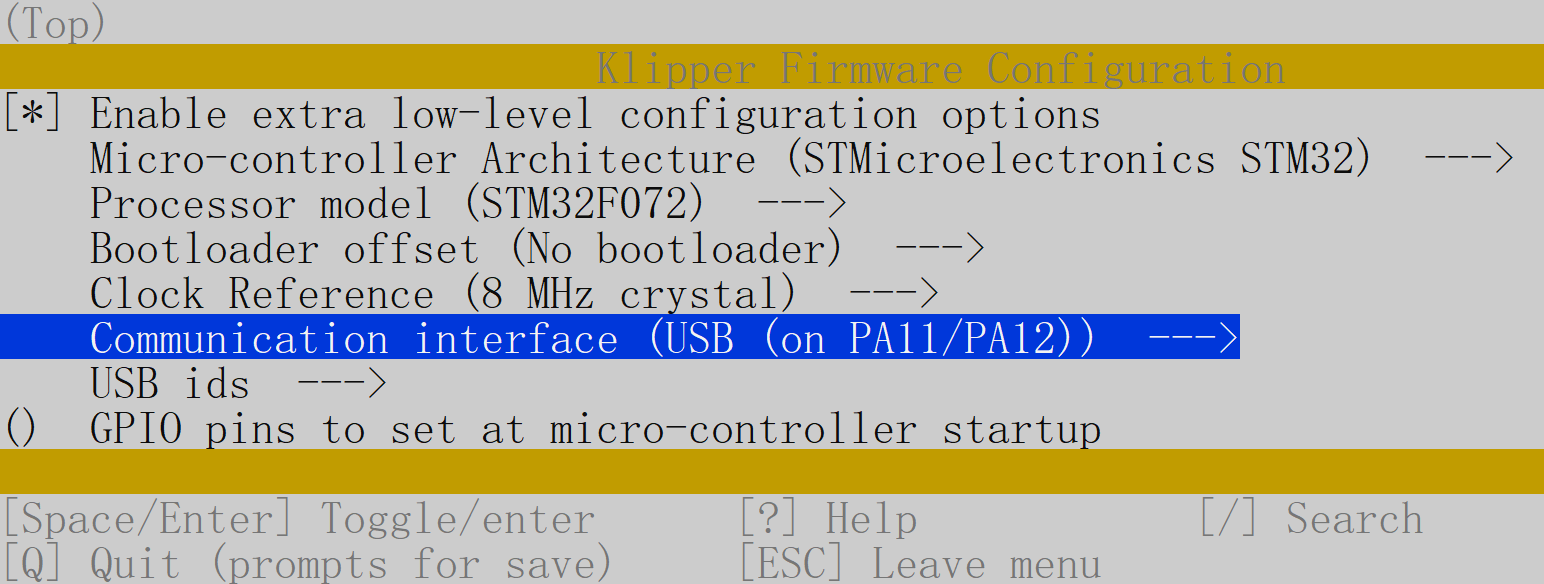
3. Once the configuration is selected, press `q` to exit, and "Yes" when asked to save the configuration.
4. Run the command `make`
5. The `klipper.bin` file will be generated in the folder `home/pi/kliiper/out` when the `make` command completed. And you can use the windows computer under the same LAN as raspberry pi to copy `klipper.bin` from raspberry pi to the computer with `pscp` command in the CMD terminal. such as `pscp -C pi@192.168.0.101:/home/pi/klipper/out/klipper.bin c:\klipper.bin`(The terminal may prompt that `The server's host key is not cached` and ask `Store key in cache?((y/n)`, Please type `y` to store. And then it will ask for a password, please type the default password `raspberry` for raspberry pi)
## board.cfg files
* [sample-bigtreetech-ebb-canbus-v1.0.cfg](./EBB%20CAN%20V1.0%20(STM32F072)/sample-bigtreetech-ebb-canbus-v1.0.cfg) includes all the correct pinout for EBB36 & 42 CAN V1.0
# EBB36 & 42 CAN V1.1 and V1.2
## Hardware
* MCU: ARM Cortex-M0+ STM32G0B1CBT6 64MHz whit FDCAN bus
* All other parameters are the same as EBB36 & 42 CAN V1.0
## Firmware
* Only supports Klipper at the present.
## Pinout
* EBB36 CAN V1.1 and V1.2
/EBB36%20CAN%20V1.1%20and%20V1.2/Hardware/EBB36%20CAN%20V1.1&V1.2-PIN.png)
* EBB42 CAN V1.1 and V1.2
/EBB42%20CAN%20V1.1%20and%20V1.2/Hardware/EBB42%20CAN%20V1.1&V1.2-PIN.png)
## Build Firmware Image
1. Precompiled firmware(The source code version used is [Commits on Nov 20, 2023](https://github.com/Klipper3d/klipper/commit/bb4711c5d31e8159945f945c662e6668059a174f))
* [firmware_USB.bin](./EBB%20CAN%20V1.1%20and%20V1.2%20(STM32G0B1)/firmware_USB.bin) Use USB to communicate with raspberry pi.
* [firmware_canbus.bin](./EBB%20CAN%20V1.1%20and%20V1.2%20(STM32G0B1)/firmware_canbus.bin) Use CAN bus to communicate with raspberry pi, baudrate = 1000K.
3. Build your own firmware
1. Refer to [klipper's official installation](https://www.klipper3d.org/Installation.html) to download klipper source code to raspberry pi
2. `Building the micro-controller` with the configuration shown below.
* [*] Enable extra low-level configuration options
* Micro-controller Architecture = `STMicroelectronics STM32`
* Processor model = `STM32G0B1`
* IF USE CanBoot
* Bootloader offset = `8KiB bootloader`
* ELSE
* Bootloader offset = `No bootloader`
* Clock Reference = `8 MHz crystal`
* IF USE USB
* Communication interface = `USB (on PA11/PA12)`
* ElSE IF USE CAN bus
* Communication interface = `CAN bus (on PB0/PB1)`
* `(1000000)` CAN bus speed
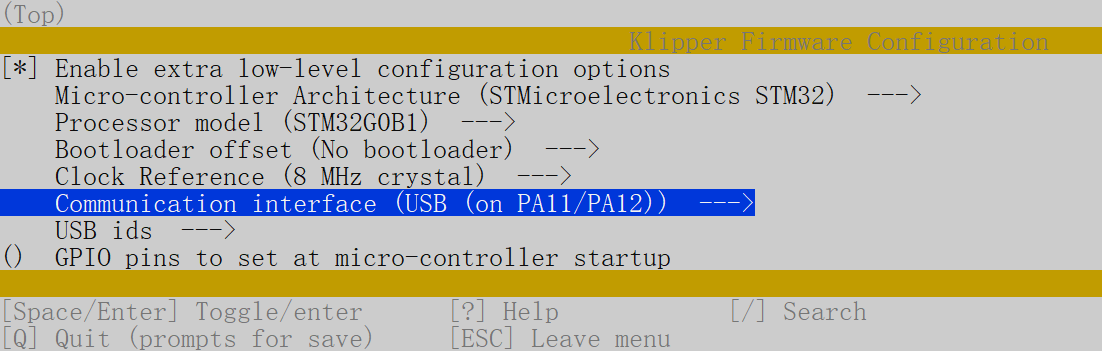
3. Once the configuration is selected, press `q` to exit, and "Yes" when asked to save the configuration.
4. Run the command `make`
5. The `klipper.bin` file will be generated in the folder `home/pi/kliiper/out` when the `make` command completed. And you can use the windows computer under the same LAN as raspberry pi to copy `klipper.bin` from raspberry pi to the computer with `pscp` command in the CMD terminal. such as `pscp -C pi@192.168.0.101:/home/pi/klipper/out/klipper.bin c:\klipper.bin`(The terminal may prompt that `The server's host key is not cached` and ask `Store key in cache?((y/n)`, Please type `y` to store. And then it will ask for a password, please type the default password `raspberry` for raspberry pi)
## Firmware update
### Warning:
(Only for EBB 36/42 CAN V1.1)
__STM32G0B1CB needs to jump to the System memory area to run bootloader (written by STMicroelectronics) when using DFU to update firmware through the Type-C port. Referring to the description in manual [AN2606](https://www.st.com/content/ccc/resource/technical/document/application_note/b9/9b/16/3a/12/1e/40/0c/CD00167594.pdf/files/CD00167594.pdf/jcr:content/translations/en.CD00167594.pdf), The initialization process of this bootloader is shown in the following figure:__
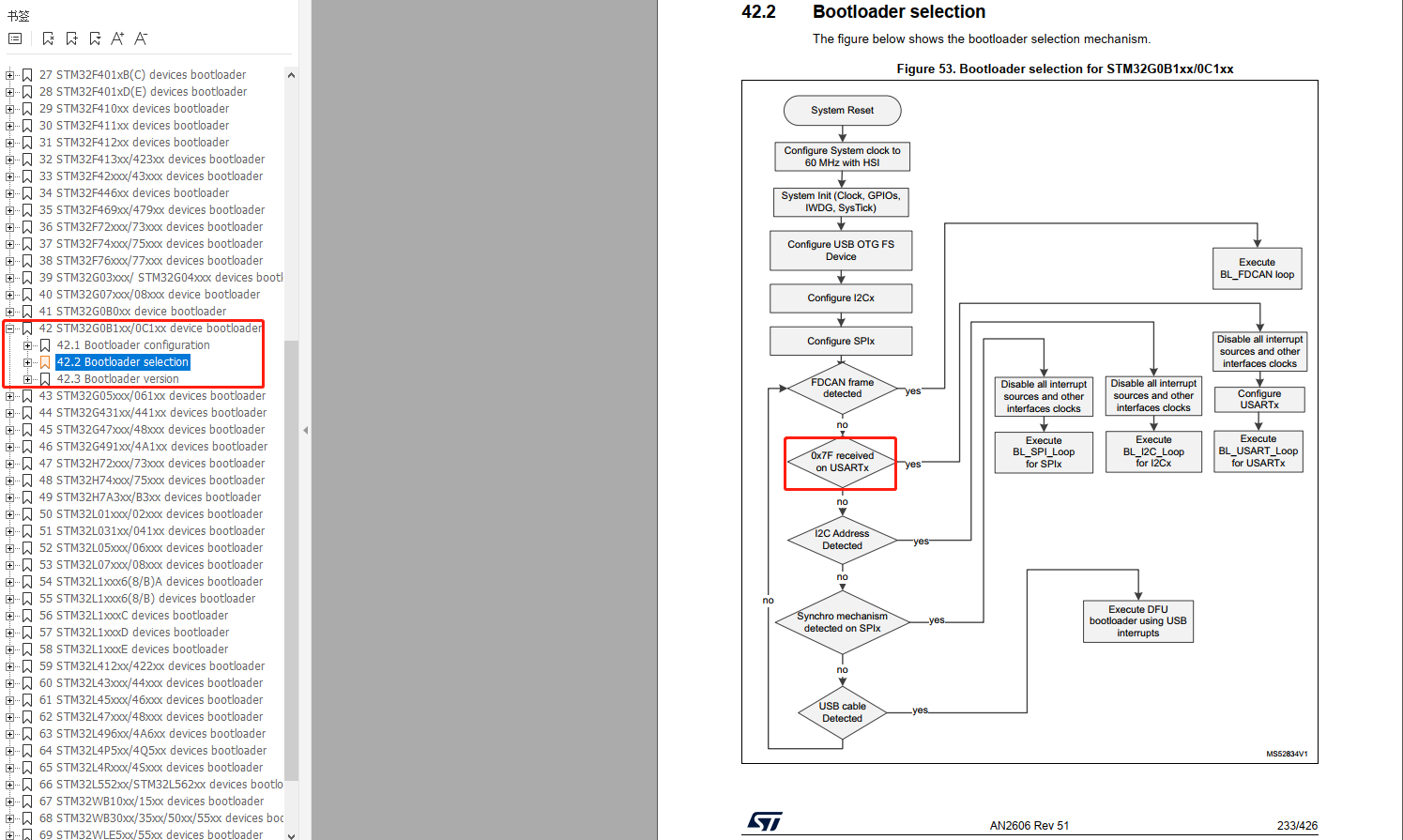
__The IO of USART will be configured before going to the USB DFU mode.__
__After going to DFU mode, PA2 will be configured to output high level by bootloader in System memory area refer to the [datasheet of STM32G0B1CB](https://www.st.com/resource/en/datasheet/stm32g0b1cb.pdf)__
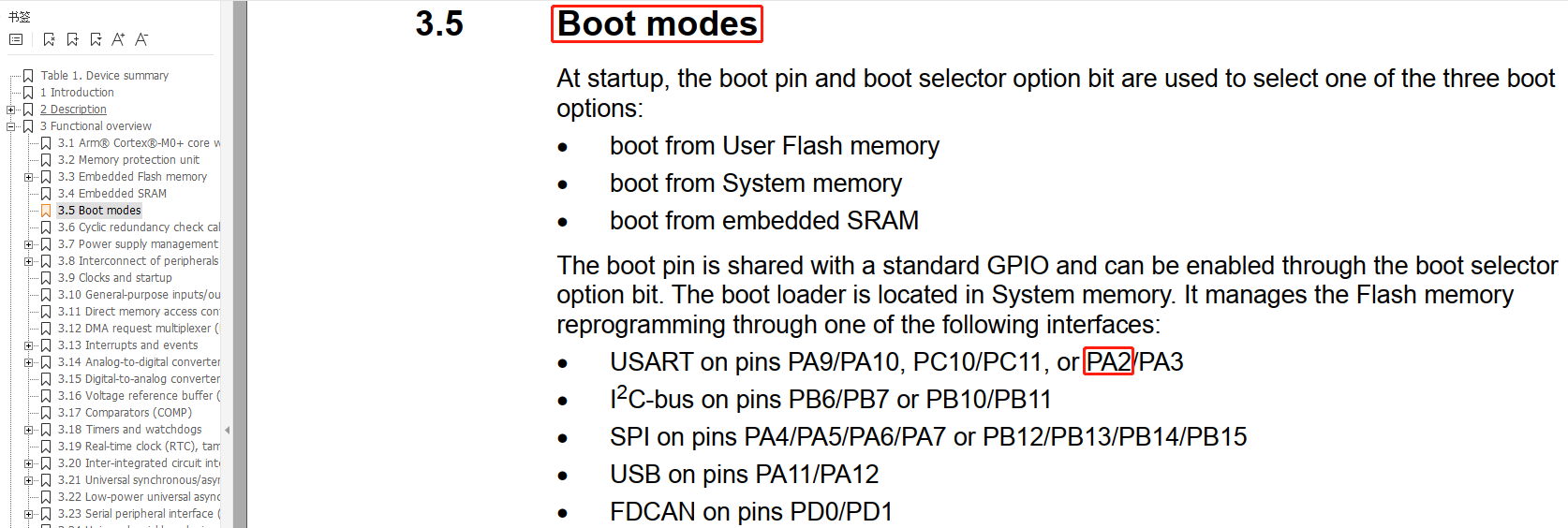
__PA2 is used for the hotend MOSFET in EBB36 & 42 CAN V1.1, The high level in the DFU mode change the hotend into heating state. Therefore, please pay attention to disconnect the main power VIN of the hotend when using the DFU of Type-C port to update the firmware, or ensure that the firmware update is completed soon and goto the normal working mode. Never keep MCU in DFU mode for a long time when the main power supply and hotend are connected.__
## board.cfg files
* [sample-bigtreetech-ebb-canbus-v1.1.cfg](./EBB%20CAN%20V1.1%20and%20V1.2%20(STM32G0B1)/sample-bigtreetech-ebb-canbus-v1.1.cfg) includes all the correct pinout for EBB CAN 36&42 V1.1
# EBB36 & 42 CAN V1.2
__V1.2 compared with v1.1: only the IO of hotend is changed from `PA2` to `PB13`__
## board.cfg files
* [sample-bigtreetech-ebb-canbus-v1.2.cfg](./EBB%20CAN%20V1.1%20and%20V1.2%20(STM32G0B1)/sample-bigtreetech-ebb-canbus-v1.2.cfg) includes all the correct pinout for EBB CAN 36&42 V1.2
# EBB SB2240_2209 CAN V1.0
## Hardware
* MCU: ARM Cortex-M0+ STM32G0B1CBT6 64MHz whit FDCAN bus
* Stepper Dirver:
* TMC2209 Version: Onboard TMC2209 in UART mode, UART address: 00, Rsense: 0.11R
* TMC2240 Version: Onboard TMC2240 in SPI mode
* Onboard Accelerometer Sensor: ADXL345
* Onboard Temperature IC: Max31865 Select 2 / 4 lines PT100 / PT1000 by DIP switch
* Input Voltage: DC12V-DC24V 9A
* Logic Voltage: DC 3.3V
* Heating Interface: Hotend (E0), maximum output current: 5A
* Fan Interfaces:
* 2 x CNC fans (FAN1, FAN2)
* 1 x 4-wire fan (4W_FAN)
* Maximum Output Current of Fan Interface: 1A, Peak Value 1.5A
* Expansion Interfaces: EndStop, Bltouch, Proximity(NPN & PNP), RGB, PT100/PT1000, USB, CAN, SPI
* Temperature Sensor Interface Optional: 1 Channel 100K NTC or PT1000(TH0), 1 Channel PT100/PT1000 (Max31865)
* USB Communication Interface: USB-Type-C
* DC 5V Maximum Output Current: 1A
## Firmware
* Only supports Klipper at the present.
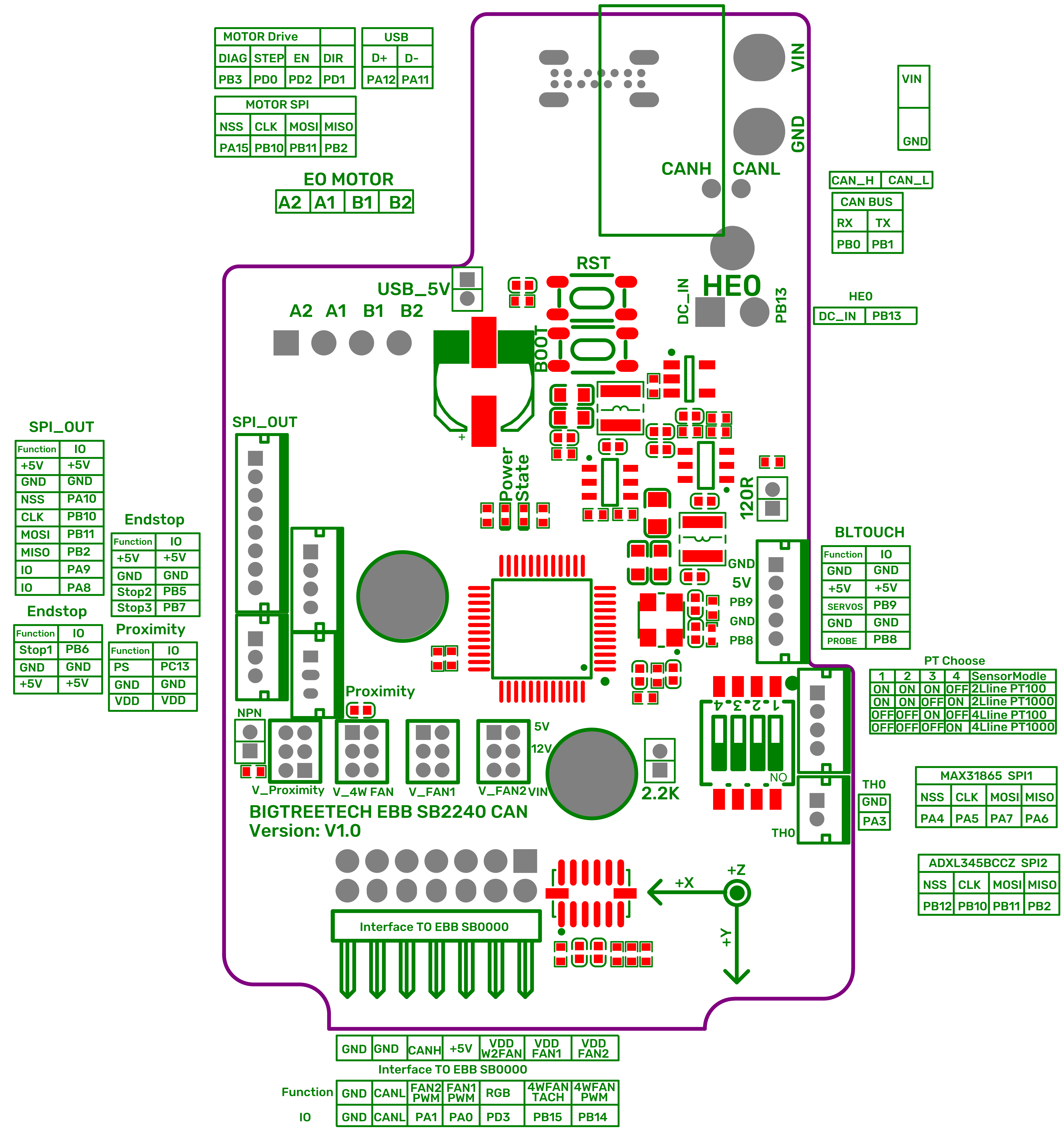
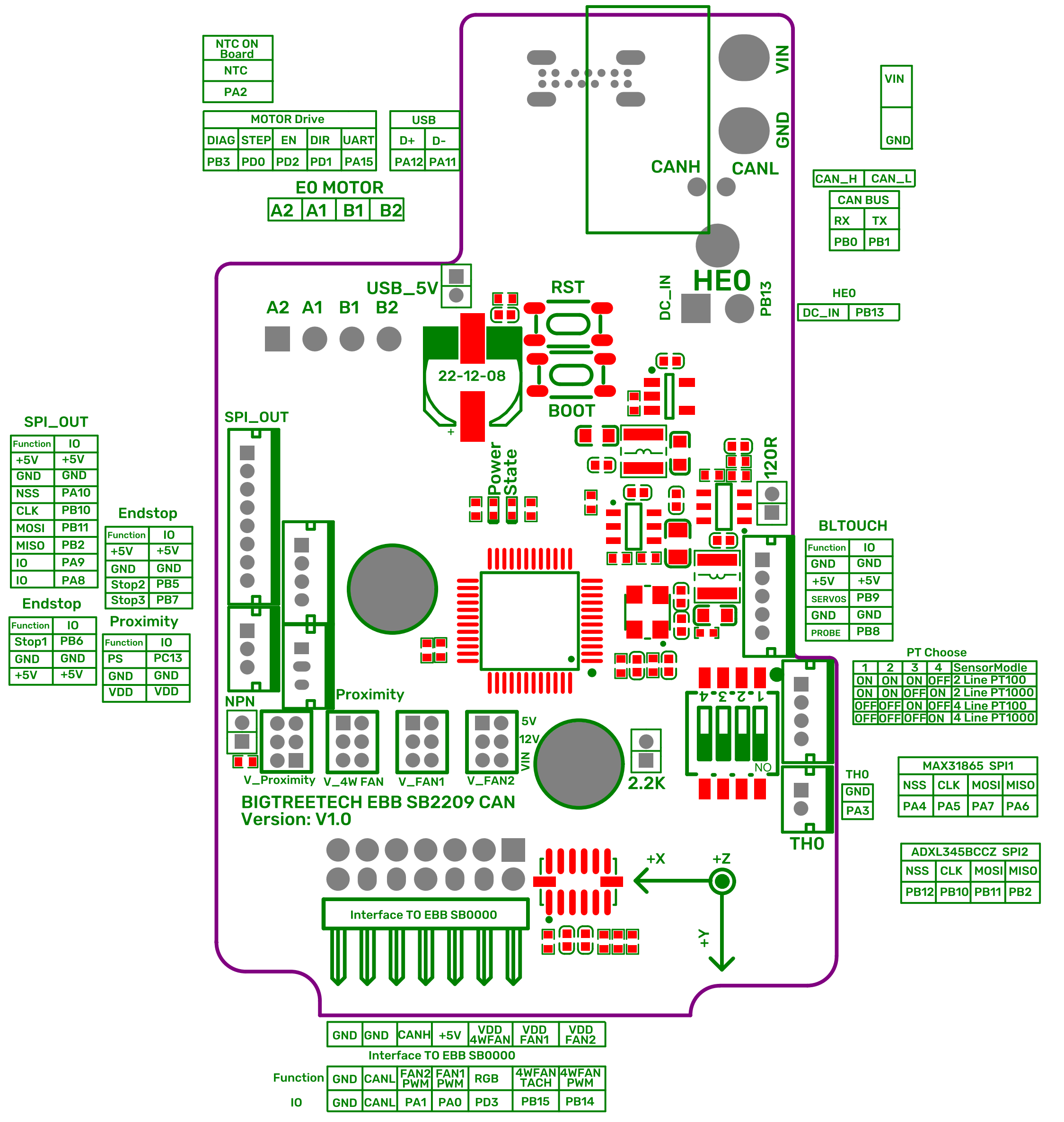
## Pinout
* EBB SB2240 CAN V1.0
* EBB SB2209 CAN V1.0
## Build Firmware Image
1. Precompiled firmware(The source code version used is [Commits on Jan 8, 2023](https://github.com/Klipper3d/klipper/commit/bca2671efb8ae6035bb8600619b7a7c4e76169c3))
* [firmware_USB.bin](./EBB%20SB2240_2209%20CAN/firmware_USB.bin) Use USB to communicate with host.
* [firmware_canbus.bin](./EBB%20SB2240_2209%20CAN/firmware_canbus.bin) Use CAN bus to communicate with host, baudrate = 1M.
* [firmware_canbus_8k_bootloader.bin](./EBB%20SB2240_2209%20CAN/firmware_canbus_8k_bootloader.bin) Use CAN bus to communicate with host, baudrate = 1M, 8KB bootloader for Canboot.
3. Build your own firmware
1. Refer to [klipper's official installation](https://www.klipper3d.org/Installation.html) to download klipper source code to host
2. `Building the micro-controller` with the configuration shown below.
* [*] Enable extra low-level configuration options
* Micro-controller Architecture = `STMicroelectronics STM32`
* Processor model = `STM32G0B1`
* IF USE CanBoot
* Bootloader offset = `8KiB bootloader`
* ELSE
* Bootloader offset = `No bootloader`
* Clock Reference = `8 MHz crystal`
* IF USE USB
* Communication interface = `USB (on PA11/PA12)`
* ElSE IF USE CAN bus
* Communication interface = `CAN bus (on PB0/PB1)`
* (1000000) CAN bus speed
3. Once the configuration is selected, press `q` to exit, and "Yes" when asked to save the configuration.
4. Run the command `make`
5. The `klipper.bin` file will be generated in the folder `home/pi/kliiper/out` when the `make` command completed. And you can use the windows computer under the same LAN as host to copy `klipper.bin` from host to the computer with `pscp` command in the CMD terminal. such as `pscp -C pi@192.168.0.101:/home/pi/klipper/out/klipper.bin c:\klipper.bin`(The terminal may prompt that `The server's host key is not cached` and ask `Store key in cache?((y/n)`, Please type `y` to store. And then it will ask for a password, please type the default password `raspberry` for raspberry pi or `biqu` for CB1)
## board.cfg files
* [sample-bigtreetech-ebb-sb-canbus-v1.0.cfg](./EBB%20SB2240_2209%20CAN/sample-bigtreetech-ebb-sb-canbus-v1.0.cfg) includes all the correct pinout for EBB SB2240_2209 CAN V1.0
* TMC2209 Version: uncomment tmc2209 config and comment tmc2240 config
```
[tmc2209 extruder]
uart_pin: EBBCan: PA15
run_current: 0.650
stealthchop_threshold: 999999
# [tmc2240 extruder]
# cs_pin: EBBCan: PA15
# spi_software_sclk_pin: EBBCan: PB10
# spi_software_mosi_pin: EBBCan: PB11
# spi_software_miso_pin: EBBCan: PB2
# run_current: 0.650
# stealthchop_threshold: 999999
```
* TMC2240 Version: uncomment tmc2240 config and comment tmc2209 config
```
# [tmc2209 extruder]
# uart_pin: EBBCan: PA15
# run_current: 0.650
# stealthchop_threshold: 999999
[tmc2240 extruder]
cs_pin: EBBCan: PA15
spi_software_sclk_pin: EBBCan: PB10
spi_software_mosi_pin: EBBCan: PB11
spi_software_miso_pin: EBBCan: PB2
driver_TPFD: 0
run_current: 0.650
stealthchop_threshold: 999999
```
# Note
## Here’s BIGTREETECH! For Makers, by makers!
* We appreciate all of your support to BIGTREETECH! To offer an excellent experience of creation to every makers,We’re devoted to design and produce high-quality and durable accessories!
## How to contact:
### If you have any technical issue,please don’t hesitate contact us:
* BIGTREETECH: service004@biqu3d.com
### Follow us on social media to get more news:
* Facebook: https://www.facebook.com/BIGTREETECH/
* Twitter: https://twitter.com/BigTreeTech
* Instagram: https://www.instagram.com/bigtreetech_official/
* Official Site: https://bigtree-tech.com/
## Purchase link:
https://www.biqu.equipment/products/bigtreetech-ebb-36-42-can-bus-for-connecting-klipper-expansion-device